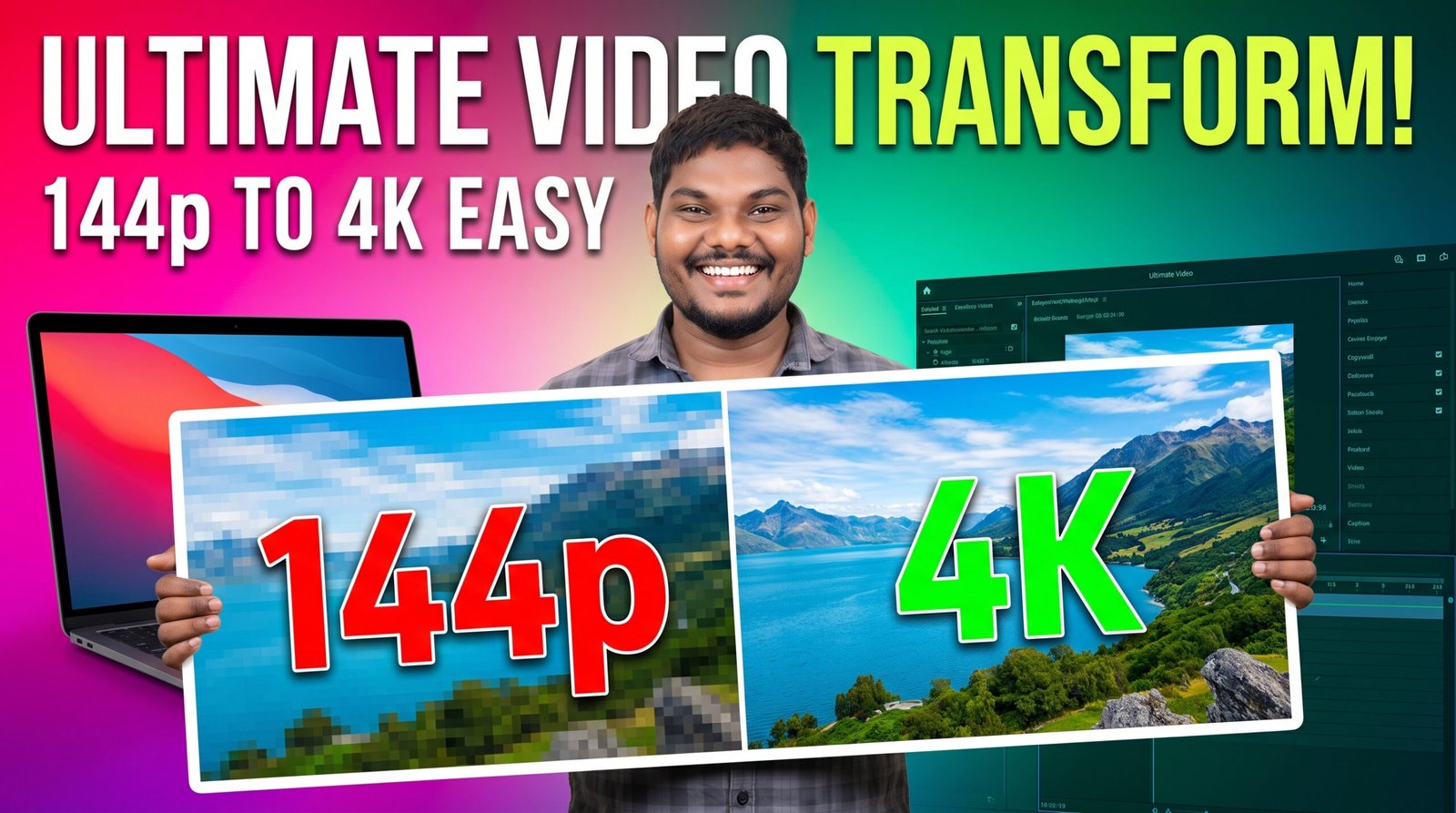
Have you ever found an old video on your computer or phone that looked so blurry you could barely recognize the faces? Maybe it was a childhood memory, an old wedding clip, a birthday celebration, or a video downloaded years ago from the internet. The excitement of finding that memory quickly disappears when you realize the quality is only 144p.
Many people immediately start searching online for terms like “Convert 144p video to 8K”, hoping there is a magical tool that can transform a blurry video into crystal-clear Ultra HD quality.
A few years ago, the answer would have been simple: No.
Today, thanks to Artificial Intelligence, the answer is a little more interesting.
Modern AI video enhancement tools can significantly improve the appearance of low-quality footage by reducing noise, sharpening edges, improving facial details, and increasing the output resolution. However, it’s important to understand what AI is actually doing. It can make a video look much better, but it cannot recreate every tiny detail that was never captured in the original recording.
In this guide, we’ll explore how AI video upscaling works, what results you can realistically expect, which tools are worth trying, and how to get the best possible quality from your old videos.
Why Do Old Videos Look So Bad?
To understand why 144p videos are difficult to improve, we first need to understand what resolution actually means.
Resolution refers to the number of pixels in a video frame. Pixels are tiny squares that together create the image you see on your screen. The more pixels there are, the more detail the image can display.
A typical 144p video contains very little visual information compared to modern recordings. When such a video is viewed on today’s high-resolution monitors, televisions, or smartphones, every missing detail becomes much more obvious.
There are several reasons why old videos often look poor:
- Older cameras captured much lower resolutions.
- Early smartphones had limited camera technology.
- Videos were heavily compressed to reduce file sizes.
- Slow internet connections encouraged lower-quality uploads.
- Repeated downloading and re-uploading reduced quality even further.
Each time a video is compressed, some information is discarded. Once those details are lost, they cannot simply be recovered by enlarging the video.
What Happens When You Simply Increase the Resolution?
Many beginners assume that changing a video’s resolution from 144p to 8K automatically improves its quality.
Unfortunately, that’s not how video works.
If you open a 144p video in a standard editor and export it as 8K, the file will indeed have an 8K resolution. However, the visual quality will remain almost the same. The pixels are simply stretched across a larger frame.
This is similar to printing a tiny passport photo on a huge poster. The poster becomes larger, but it doesn’t suddenly reveal new details.
That’s why traditional upscaling often produces soft, blurry results.
How AI Video Upscaling Is Different
Artificial Intelligence approaches the problem in a completely different way.
Instead of simply enlarging pixels, AI models analyze patterns within the video. They have been trained using millions of images and video frames, allowing them to estimate how higher-quality versions of similar scenes might look.
For example, if the AI recognizes a human face, it can predict where the eyes, eyebrows, lips, and other facial features should appear. If it detects grass, hair, or buildings, it applies learned patterns to improve those areas.
This process doesn’t recover the original missing information. Instead, it intelligently generates additional visual detail that appears more natural than ordinary enlargement.
The result is often much sharper and more pleasing to the eye.
Can AI Really Convert 144p to 8K?
This is probably the biggest misconception on the internet.
Yes, AI software can export a video in 8K resolution.
No, it cannot transform a heavily compressed 144p recording into true native 8K footage.
Native 8K cameras capture an enormous amount of detail during recording. A 144p video simply never contained that level of information.
Think of it this way:
Imagine someone draws a smiley face using only ten dots. No matter how intelligent the software becomes, it cannot perfectly recreate a highly detailed portrait from those ten dots.
AI can make educated predictions.
It cannot travel back in time and recover information that was never recorded.
That’s why it’s better to think of AI enhancement as restoration rather than recreation.
When AI Produces Impressive Results
Although AI has limitations, there are situations where the improvements are genuinely impressive.
For example:
- Old family recordings become much clearer.
- Wedding highlights from older cameras gain noticeable sharpness.
- Vintage travel footage becomes easier to watch.
- Archived YouTube videos look cleaner.
- Social media clips become more presentable.
In many cases, viewers immediately notice the improvement, even though the video isn’t truly equivalent to modern 4K or 8K recordings.
Factors That Affect AI Upscaling Quality
Not every video responds the same way to AI enhancement.
Several factors determine the final result.
Original Recording Quality
A clean 480p recording generally improves much better than a heavily compressed 144p download.
The more information available in the source, the more the AI can work with.
Lighting Conditions
Videos recorded in bright daylight usually contain more visible information.
Dark scenes with heavy digital noise are much harder to restore.
Camera Movement
Stable shots allow AI to analyze details more accurately.
Fast movement often introduces motion blur, making enhancement more challenging.
Compression Level
Videos downloaded multiple times from messaging apps or social media platforms usually lose additional quality.
Less compression almost always leads to better AI enhancement.
Common Misunderstandings
There are many myths surrounding AI video enhancement.
Let’s clear up a few of them.
Myth 1: AI Creates the Original Details
Not exactly.
AI predicts what those details might look like based on patterns it has learned.
Myth 2: Every Video Can Become Crystal Clear
Some videos simply don’t contain enough usable information.
AI improves many recordings, but it cannot perform miracles.
Myth 3: Exporting at 8K Means Real 8K Quality
The output resolution and the actual visual quality are two different things.
An exported 8K file can still originate from very low-quality footage.
Who Uses AI Video Enhancement?
AI video restoration is becoming increasingly popular across many industries.
Professional editors restore archived footage.
Wedding filmmakers improve older client videos.
Content creators refresh old YouTube uploads.
Photographers convert slideshows into cleaner promotional videos.
Families preserve priceless memories recorded years ago.
Even documentary producers use AI tools to improve historical footage while carefully preserving authenticity.
Is AI Replacing Traditional Editing?
Not at all.
Professional editors still rely on software such as Adobe Premiere Pro, DaVinci Resolve, and Adobe After Effects.
AI works best as an assistant.
Many editors first enhance footage using AI, then perform color correction, stabilization, noise reduction, audio cleanup, and creative editing afterward.
This combination usually delivers the strongest results.
Final Thoughts
The dream of turning every blurry 144p video into flawless 8K footage isn’t realistic—but that doesn’t mean AI isn’t incredibly useful.
Modern AI upscaling technology can dramatically improve many low-resolution videos, making treasured memories easier to enjoy on today’s larger, sharper displays. Understanding its strengths and limitations helps you set realistic expectations and get the best possible results.
In the next part of this guide, we’ll take a closer look at how AI enhancement actually works behind the scenes, compare traditional upscaling with neural-network-based restoration, and explain why some videos improve far more than others.
How AI Video Upscaling Works and How to Get the Best Results
By now, you already know that AI can’t magically recover every missing detail from a 144p video. But that naturally leads to another question:
If AI isn’t recreating the original image, what exactly is it doing?
This is where things get interesting.
Most people imagine AI as a magic button that transforms blurry videos into crystal-clear footage. In reality, there’s a lot happening behind the scenes. Modern AI models analyze every frame, compare it with patterns they’ve learned during training, and generate a cleaner, sharper version that looks more natural than traditional upscaling.
The technology is incredibly advanced, but the basic idea is surprisingly easy to understand.
Traditional Upscaling vs AI Upscaling
Let’s start with the simplest comparison.
Imagine you have a small photo printed on a piece of paper.
Traditional Upscaling
A normal video editor simply stretches the image.
It creates new pixels by averaging the colors of nearby pixels.
The result is:
- Softer edges
- Blurry text
- Loss of sharpness
- Visible pixelation
Nothing new is actually created.
The image only becomes larger.
AI Upscaling
AI follows a completely different process.
Instead of stretching pixels, it studies the image.
It tries to identify objects like:
- Faces
- Eyes
- Hair
- Buildings
- Trees
- Clothing
- Animals
- Cars
- Background textures
Then it predicts how those objects usually appear in higher resolution.
This prediction is what makes AI enhancement look much better than ordinary enlargement.
Understanding Neural Networks (Without the Technical Jargon)
You may have heard terms like:
- Deep Learning
- Neural Networks
- Machine Learning
These sound complicated, but here’s a simple way to think about them.
Imagine showing a child millions of photographs of cats.
Eventually, the child learns what cats generally look like.
The next time they see a blurry picture, they can still recognize that it’s probably a cat.
AI works in a similar way.
Developers train these systems using enormous collections of images and videos.
Over time, the AI learns common patterns.
It understands things like:
- Human faces usually have two eyes.
- Hair has fine texture.
- Grass contains lots of tiny details.
- Brick walls follow repeating patterns.
- Trees have branches and leaves.
When enhancing a blurry frame, the AI uses those learned patterns to generate a more detailed version.
Why Faces Usually Improve the Most
If you’ve watched AI restoration videos online, you’ve probably noticed one thing.
Faces often show the biggest improvement.
That’s because facial recognition is one of the most researched areas in artificial intelligence.
AI has learned the structure of:
- Eyes
- Eyebrows
- Nose
- Lips
- Skin texture
- Hairline
When the original face is still somewhat visible, AI can often enhance it quite effectively.
However, if the face occupies only a few pixels, there’s simply not enough information available.
In those situations, the enhancement becomes less reliable.
Why Text Is Difficult
Many people try enhancing old videos containing subtitles or signboards.
Sometimes the text becomes easier to read.
Sometimes it becomes even worse.
Why?
Letters require extremely precise shapes.
If the original text is heavily blurred, AI has to guess each character.
A small mistake can completely change a word.
This is why professionals usually restore important text manually instead of depending entirely on AI.
How AI Handles Motion
A video isn’t just one picture.
A one-minute clip recorded at 30 frames per second contains around 1,800 individual frames.
AI doesn’t simply process every frame independently.
Modern tools also compare neighbouring frames.
This helps maintain consistency.
For example:
If a person’s face appears across ten consecutive frames, the software analyses how the face moves between them.
This produces smoother results and reduces flickering.
Older enhancement methods often sharpened one frame differently from the next, creating distracting visual changes.
Modern AI is much better at avoiding that problem.
Noise Reduction Before Sharpening
One mistake beginners often make is sharpening noisy footage first.
That usually makes the noise even more noticeable.
Professional AI workflows generally begin with noise reduction.
This removes unwanted grain and digital artifacts.
Only after cleaning the image does the software begin restoring edges and textures.
The order matters.
Clean first.
Sharpen second.
Why Compression Makes Restoration Harder
Compression is one of the biggest enemies of video quality.
Whenever a video is uploaded to social media, messaging apps, or some websites, it may be compressed to reduce file size.
Compression removes information.
Once those details disappear, AI has less material to work with.
For example:
An original camera file generally enhances much better than a video downloaded multiple times from different platforms.
Whenever possible, always use the highest-quality source available.
Common Mistakes People Make
After reading hundreds of discussions online, I’ve noticed that many beginners repeat the same mistakes.
Expecting Instant Miracles
AI is powerful.
But it still follows the limits of the original recording.
If a face is only ten pixels wide, no software can perfectly recreate every facial feature.
Using Extremely Aggressive Settings
Many enhancement tools allow users to increase sharpening.
More isn’t always better.
Too much sharpening creates:
- Halos
- Artificial textures
- Plastic-looking skin
- Unnatural edges
Moderate settings usually produce the most realistic results.
Ignoring the Original Frame Rate
Some people upscale resolution and increase frame rate at the same time.
These are two different processes.
Higher frame rates may improve smoothness, but they won’t automatically improve image quality.
In fact, aggressive frame interpolation can introduce visual artifacts.
Can AI Restore Old Family Videos?
This is one of the most rewarding uses of AI.
Many families have:
- Childhood recordings
- VHS transfers
- MiniDV tapes
- Old camcorder footage
- Wedding videos
- Birthday celebrations
Even a moderate improvement can make these memories far more enjoyable to watch on modern televisions and monitors.
While AI can’t recreate every lost detail, it often makes faces clearer, reduces distracting noise, and produces a cleaner overall image.
Tips Before Starting an Upscaling Project
If you’re planning to restore an old video, keep these practical tips in mind:
- Find the original recording if possible.
- Avoid repeatedly converting the file.
- Keep a backup of the untouched original.
- Test your settings on a short clip before processing the entire video.
- Compare the enhanced version with the original rather than assuming stronger settings are always better.
Patience often produces better results than rushing through the process.
Does AI Work Better on Modern Computers?
Yes.
AI video enhancement requires significant processing power.
The software performs millions of calculations while analysing every frame.
A modern multi-core processor, a capable graphics card, and plenty of RAM can dramatically reduce processing time.
Long videos may still take hours to complete, especially when using high-quality enhancement settings.
What’s Coming Next?
AI video restoration continues to improve every year. Researchers are finding better ways to reduce noise, sharpen details, stabilize footage, and generate more natural-looking results.
Even so, the best results still begin with the best source material. AI can enhance what exists—but it can’t perfectly reconstruct everything that was never recorded.
In the next part of this guide, we’ll explore some of the most popular AI video enhancement software, compare their strengths and weaknesses, and help you decide which type of tool is best for your editing workflow.

Prompt
Enhance the portrait while strictly preserving the subject’s identity with accurate facial geometry. Do not change their expression or face shape. Only allow subtle feature cleanup without altering who they are.
Keep the exact same background from the reference image. No replacements, no changes, no new objects, no layout shifts. The environment must look identical. The image must be recreated as if it was shot on a Sony A1, using an 85mm f1.4lens, at f1.6, ISO 100, 1/200 shutter speed, cinematic shallow depth of field, perfect facial focus, and an editorial-neutral color profile. This Sony A1+ 85mm f1.4 setup is mandatory. The final image must clearly look like premium full-frame Sony Al quality. Lighting must match the exact direction, angle, and mood of the reference photo. Upgrade the lighting into a cinematic, subject-focused style: soft directional light, warm highlights, cool shadows, deeper contrast, expanded dynamic range, micro-contrast boost, smooth gradations, and zero harsh shadows.Maintain neutral premium color tone, cinematic contrast curve, natural saturation, real skin texture (not plastic), and subtle film grain. No fake glow, no runway lighting, no over smoothing.
Render in 4K resolution, 10-bit color, cinematic editorial style, premium clarity, portrait crop, and keep the
original environmental vibe untouched. Re-render the subject with improved realism, depth, texture, and lighting while keeping identity and background fully preserved.
NEGATIVE INSTRUCTIONS:
No new background.
No background change.
No overly dramatic lighting.